
As many of our long-standing users will know, we offer a free tool called the Broadband Quality Monitor (BQM) which allows you to monitor your broadband connection once a second, every second. We have been running this service for over 15 years. It is exceptionally effective at showing where your performance might vary at peak times, and it can identify ISP congestion.
How BQM Measures Latency
Our Broadband Quality Monitor sends one ICMP ping request every second. Replies reveal round-trip latency; unanswered pings are recorded as packet loss.
This is a simulated animation to explain how our Broadband Quality Monitor works and not a live result.
So far, all the monitoring has been carried out from our network in the Telehouse campus in London close to the London Internet Exchange (LINX) and LONAP. This has generally meant being close to the major internet exchanges in the UK.
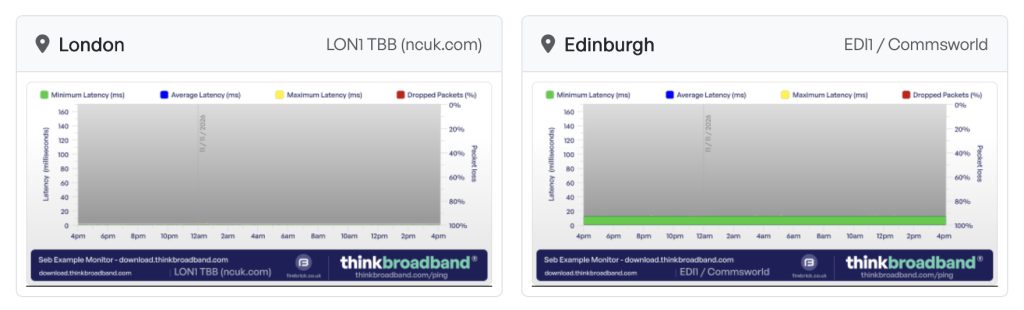
We have now launched another monitoring node based in the Pulsant datacentre in South Gyle, Edinburgh, which is close to LINX Scotland. This is hosted by Commsworld, an Internet Service Provider based in Scotland. The monitoring continues to use the Firebrick FB6000-series devices, although these are now surpassed by the FB9000 for broadband aggregation. The consumer/small business version is the FB2900. We tested the FB2900 and although it’s quite powerful, we had issues collecting the data into our database regularly which was affecting the testing data itself, a problem of scale since we don’t do a few dozen but tens of thousands of monitors.
If you view the ‘Today’ view, or share a BQM, you can see both monitors side-by-side:
We already have plans to add further monitoring nodes to give more visibility from different networks in different physical locations.
How to add the Commsworld Node
We are going to be undertaking tests to see if we can add these automatically for users. However, in the meantime, if you’d like to add the new Edinburgh-based node to your BQM, you can do so manually by editing your BQM.
Firewall — If you have firewall settings which require the IP addresses to be whitelisted, then you will need to add the IP addresses for this node.
- London (lon1.ping.thinkbroadband.com) — IPv4: 80.249.99.164 / IPv6: 2a02:68:1::164
- Edinburgh (edi1.ping.thinkbroadband.com) — IPv4: 45.149.252.107 / IPv6: 2a00:a600:0:1c::2
We will update the IP addresses and any new monitoring node locations on the main BQM page.
Go to your profile, find the BQM and edit it. Then tick the “EDI1 / Commsworld” box on the right and scroll down to “Update Monitor” and you’re done. You will have to wait a few minutes to see results.

Can I use the BQM?
To use the BQM, you need to have a “real” IP address on your broadband router. This means if you’re on a large provider that uses CGNAT or similar technologies, you may not be able to use this service. Ideally, you would have a static IP address, although sticky addresses (in other words, dynamic IP addresses that don’t change very often) are generally fine if you have a dynamic DNS provider that maps this as it updates.
This tool is designed for more technical users. You may be able to reconfigure your router to work with it, but it does depend on your provider and your broadband router. If you can’t use it with IPv4 due to CGNAT or similar issues, you may still be able to use it using IPv6. However, you will need to identify your IPv6 address of your router, and not use your computer’s address by accident.
If you’d like advice about how to enable the BQM functionality, ChatGPT is a great way to answer that question. We have a pre-defined prompt which should help you get started. As with all AI, please be cautious about using AI. We have tried to ensure the prompt is wise and won’t misguide but we can’t control it or what you may say.
Need more than 5 BQMs?
We limit users to 5 BQMs by default. If you add monitoring from the new node, it will not affect the number of BQMs you can monitor or count towards this limit. However, if you set up a separate monitor, it will use up one of these slots. We would suggest that, in any case, you add the monitoring location rather than adding a separate BQM, using up a slot.
If you do want more than 5 BQMs? You can contact us to request this. We are generally quite generous with adding these, as the limit is primarily there to stop abuse. We do not offer a commercial service, however, if you can justify the requirement (i.e. these aren’t random websites you’re monitoring), we can issue significantly larger limits. Do not create multiple accounts to set up more BQMs, just contact us and ask us with a reason for your request. (We will probably upgrade this limit to 10 for most users in the near future, in any case, but you may still want more).
 Test your broadband speed
 Follow us on X for the latest broadband news





Leave a reply