WiBE 3G router with WiFi
ARCHIVED CONTENT
This content is being maintained for reference purposes but is not being updated.
Sections
Introduction
What you get for your money
Configuring the WiBE
Configuring Wireless Access
Firewall Configuration
Miscellaneous Settings
Performance
Conclusion
Links
Photos
Introduction
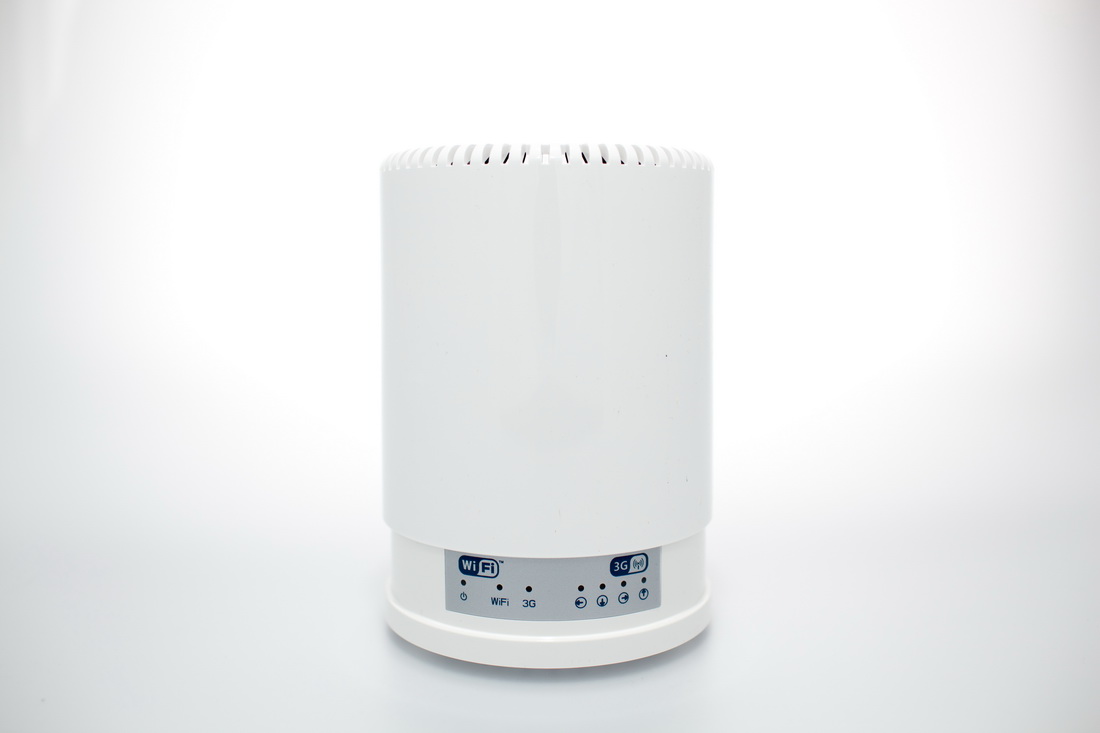
The WiBE is an unusual piece of broadband hardware, as it claims to be able to provide a 3G broadband connection in areas where other hardware cannot. In theory, given a good enough 3G signal the device should run at up to 7.2 Mbps.
Click image for larger version
The WiBE works by using a 3G data SIM and testing the four antenna enclosed within its barrel like body, then selecting the antenna that gives the best signal. The use of four differently oriented antenna that are larger than you will find in any 3G enabled phone or MiFi device means the device can find a 3G signal in areas where other devices cannot.
One important point to make is that unlike mobile phones that will drop back to the slow GPRS data standard, the WiBE will only operate where it can detect a 3G signal.
The WiBE incorporates a wireless broadband router so once it has found a 3G signal you can share it between your devices using Wi-Fi or one of the two Ethernet connectors.
What you get for your money
The WiBE is far from cheap, at £250 to £270, but that is for an unlocked device, so if you compare it to the price of other mobile phone hardware when there is no network subsidy it looks less shocking.
Click image for larger version
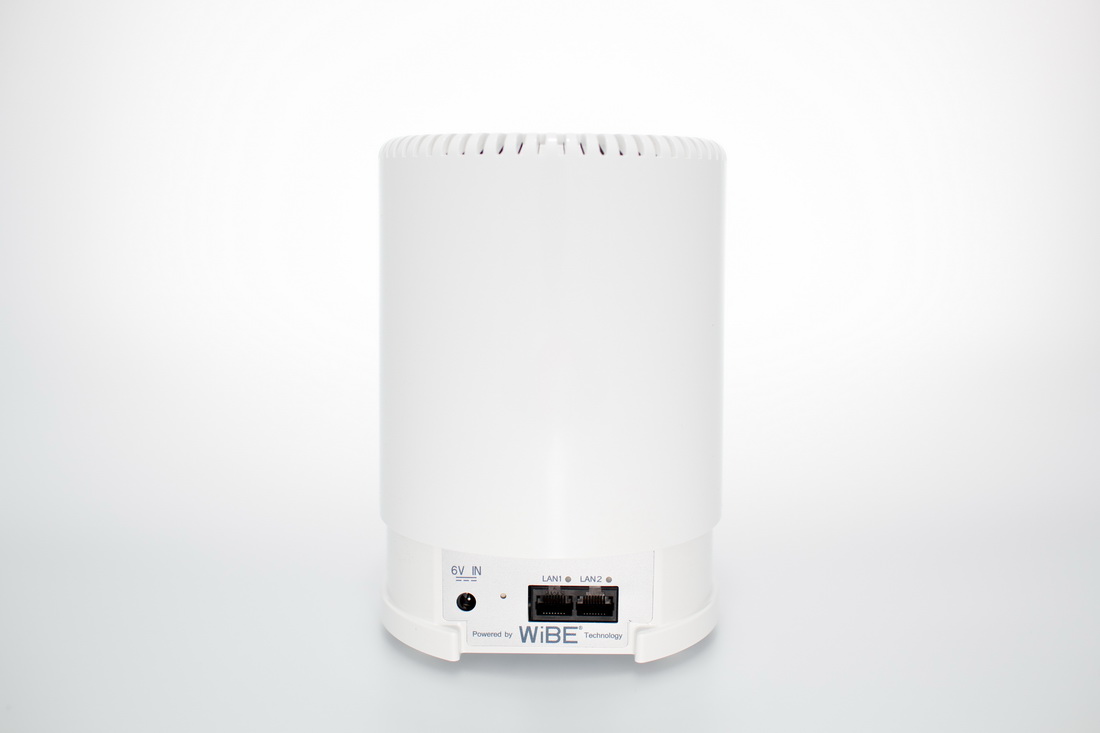
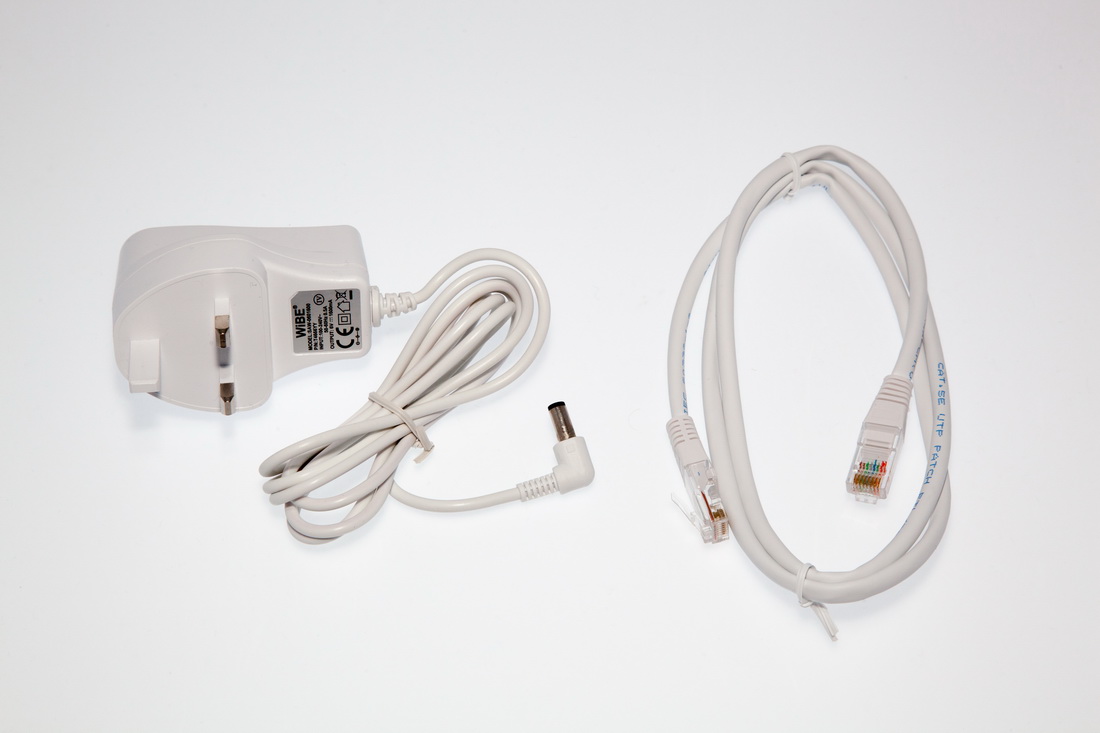
There are other hardware options, such as a battery pack for the ultimate in remote 3G connectivity, and for the road warrior or caravan enthusiast a 12V adaptor lead. Don’t go and bodge a lead together as the WiBE wants a 6V DC connection, not the standard car battery 12V.
Click image for larger version
The pictures don’t really convey the size of the main unit which is 18.2cm (height) x 13cm (diameter) and weighs 450g. So this is not a device you would slip into a coat pocket.
Click image for larger version
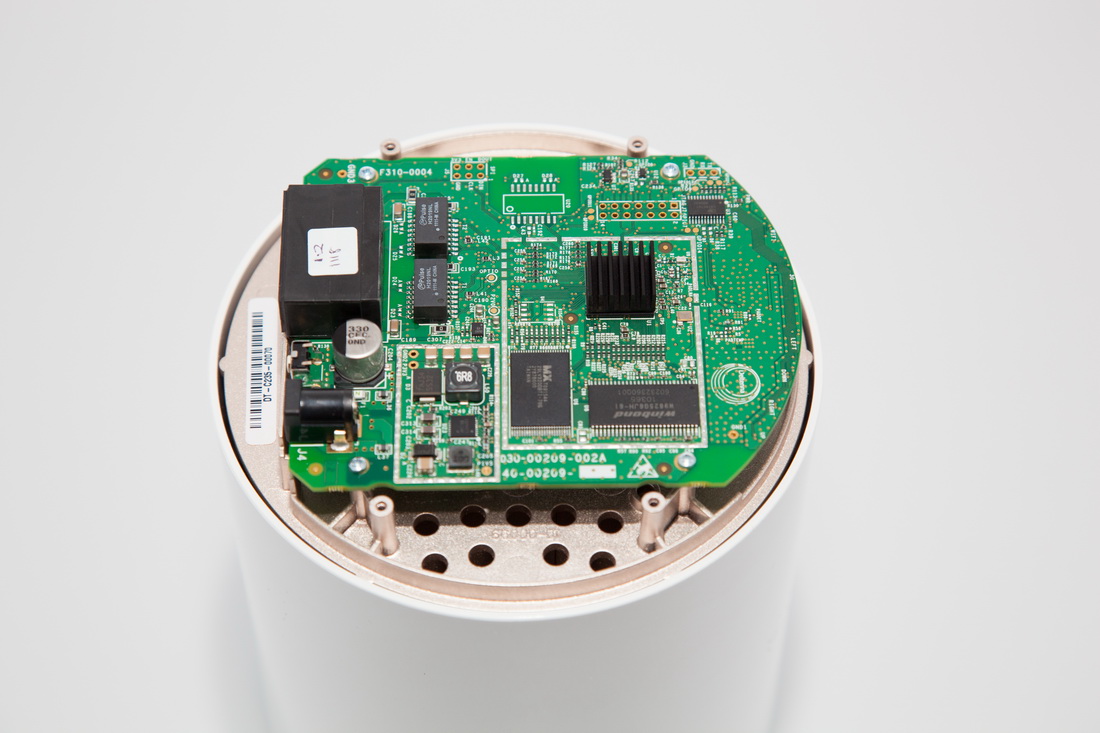
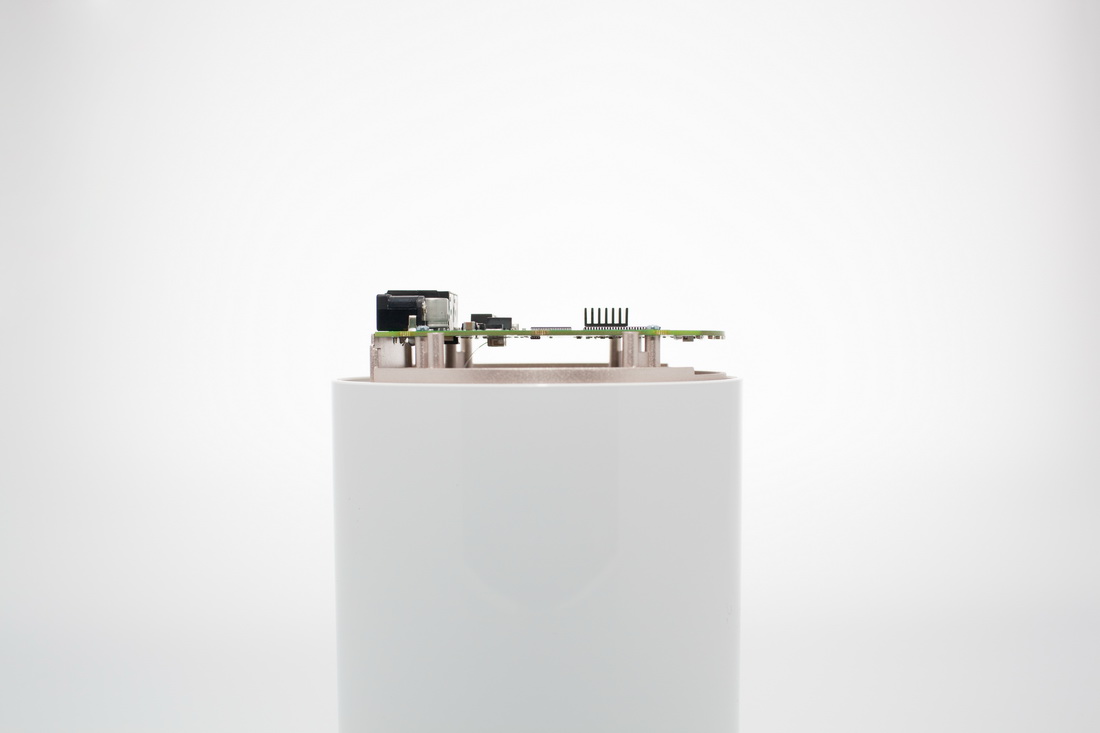
The majority of the case is occupied by the four 3G antenna which are linked to the PCB via a ribbon cable.
Click image for larger version
Connnecting the WiBE
It is not often we get a device that is truly plug and play, but the WiBE seems to be. Using the device is as simply as unpacking it, inserting a SIM card, powering it on and then waiting a couple of minutes for it to finish its checking for a 3G signal.
The sequence the router follows when searching for a 3G signal is to cycle through its four antennas, represented by their own LED on the base panel, the 5 second wait while it checks each cell location can seem an eternity when staring at the LEDs. We would also warn the impatient that the router takes around 2 to 3 minutes to be ready from initial power up.
To connect to the WiBE via Wi-Fi, the WPA encryption information is helpfully supplied on the quick start leaflet and also on a sticker on the bottom of the router.
The WiBE should work with all the 3G networks in the UK, and its firmware knows the settings to use. Just in case you need to manually configure the settings, you can log into the router at http://192.168.1.1 and under Internet Settings | 3G you can configure the APN and other details.

Click image for larger version
If you are unable to get the WiBE to provide any Internet access and you are sure your 3G data SIM works, then a visit to the Administration | Status page is in order.

Click image for larger version
In the screenshot above, the WiBE is clearly still looking for a signal. In which case relocating it to another position in the home may help, generally the higher the WiBE is located the more chance it has of picking up a signal.
Configuring Wireless Access
While the WiBE is supplied with WPA encryption enabled, it is often a good idea with pre-configured hardware to set your own wireless key. The WiBE supports all the usual options as can be seen below:

Click image for larger version
While a Hidden SSID is a popular choice by some when attempting to secure their wireless network, this actually does very little and can confuse some wireless devices when trying to connect, so we would advise leaving the SSID visible. The Isolated checkbox can be useful, as it means that while each client computer can connect to the Internet they are isolated from other clients running on the same LAN.
Network mode can be useful, and while the WiBE supports 802.11n the 3G speed limit of 7.2 Mbps means that in reality running in 802.11b/g mode will be sufficient. Wireless devices are meant to automatically pick the best network speed, but with some wireless network cards forcing a router to use the older b/g standards can actually improve connectivity, as not all devices that say they support 802.11n actually interoperate very well.

Click image for larger version
Changing the Security settings is pretty simple and a variety of WEP, WPA and WPA2 encryption options are available. While you can run the WiBE with wireless security disabled, we would not recommend this particularly given the cost of 3G data.
The Access Policy gives you the option of filtering access to the wireless network via a devices MAC address. In theory the MAC is unique to every network card (both wireless and Ethernet), but they can easily be changed, so while it provides some extra security it will not keep the determined out of the network – hence why using a long and very difficult to guess encryption pass phrase is important.
Firewall Configuration
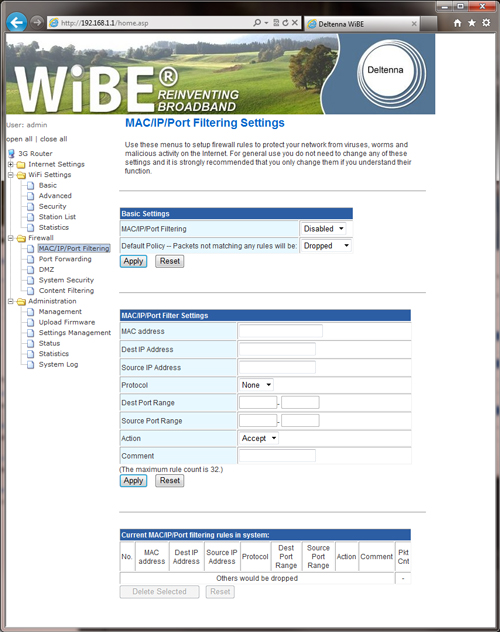
In the out of the box configuration, the WiBE is already more secure than using a USB 3G dongle, as the routers NAT functionality will drop all unsolicited traffic. The firewall settings allow you more control and can do things like block outgoing traffic on specific ports, or punch holes in the NAT firewall so that a webcam broadcast can be seen.
MAC/IP/Port Filtering
Click image for larger version
The MAC/IP filtering is disabled by default, and operates in two modes:
- Packets not matching any rules will be Dropped: This means for any Internet communication to operate you will have to configure a rule. This effectively creates a very strict lock down on the Internet connection.
- Packets not matching any rules will be Accepted: This is the common mode people use, and could be used to block a range of ports, eg. by blocking the range of ports usually used by a peer to peer client you can probably stop it from working – we say probably as many p2p clients can be reconfigured to get around this sort of blocking.
The rule table allows only 32 rules, so if running in Dropped mode you may find that a complex network is going to run out of rules very quickly. While some may think that dropping all traffic, but only allowing TCP port 80 traffic through will mean just basic web browsing is available, many video streaming protocols support a fail-over to using HTTP and thus would still work and chew bandwidth. In conjunction with the Content Filtering on another page, you might be able to restrict someone’s YouTube addiction that results in a data allowance vanishing the first day of a new billing period.
Port Forwarding / Virtual Server Settings
The router in the WiBE supports two types of server hosting, you can use port forwarding where the port on the local network is the same as the port people will access the service/device on via the Internet. For example if you wanted to host a FTP server on TCP port 21 and it to be accessed from the Internet using the standard FTP commands then use port forwarding to direct port 21 to the appropriate LAN IP address.

Click image for larger version
The Virtual Server settings allow you to do port redirection, e.g. if you have an IP based webcam that runs on TCP port 8000, you can actually accept the Internet requests on TCP port 80 and use a virtual server rule to redirect the requests to port 8000 on the local LAN.
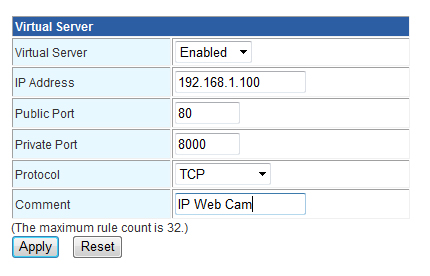
If port forwarding does not work, then there is the fall back option of defining a machine on the local LAN as the DMZ host. This effectively makes the device using that IP address totally visible from the Internet, and thus should only be used as a last resort. Before getting too excited over your ability to host a webcam, you should check whether your mobile provider is handing you a public IP address or if they are already applying NAT to the connection.
Content Filter Settings
For those who want to lock down Internet access this area may be worth a look, but as is common with many routers, it is not ideal and is no replacement for software running on the local computer. Of course with a 3G data SIM by default sites that are considered Adult in nature are blocked, so content filtering is less of an issue on the WiBE, as you have a network level option too.
Two levels of filtering are possible, keyword matches in any part of the URL or just the host name component.
Miscellaneous Settings
The WiBE does support the usual set of router options, so you can change the IP range of the router if you wish, or adjust the DHCP IP address pool range from the default 192.168.1.100 to 192.168.1.200 if you wish.
Usefully the router does support reservation of a LAN IP address via a MAC address for up to three devices. If UPnP is important, then this can be enabled.
If you are using a VPN to tunnel your traffic across the mobile networks and you find the WiBE is causing problems, before resorting to playing with port forwarding we would suggest trying the VPN Passthrough options, which provide three ALG options for L2TP, IPSec and PPTP.
Performance
On initial unpacking the WiBE was actually a bit of a disappointment, as no matter where we located it at home, it was unable to find any 3G signal. Given our location on the mobile operator’s maps shows us being on the edge of 2G/No Signal at all then this is no surprise, but does highlight that the WiBE is not a solution to everyone’s broadband problem. Some retailers selling the WiBE will let you try the device for a week, just make sure you keep all the packing until you are happy with it.
Relocating 500m down the road, and running the WiBE from a mains inverter inside the car boot we were able to get the router to connect and successfully pick up a 3G signal where a Samsung Galaxy S2, iPhone 5 or Vodafone mobile dongle could not. If you are going to run the WiBE using your car battery make sure you remember to turn it off otherwise your battery will eventually run down, or check whether your car switches off 12V accessory outlets after a period of time once the ignition key has been removed. The unit is rated at using less than 5W and we measured 0.25A on the current consumption.
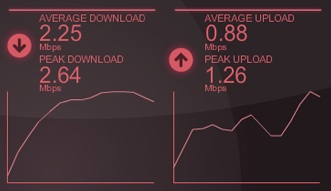
Moving to an area where our phones could just about pick up a 3G signal was interesting, as the WiBE still performed better and you did not have the problem of having to stand in a certain spot to use the signal. Even with the boot of the car closed, we were able to use the WiFi some 30 metre away across the car park.
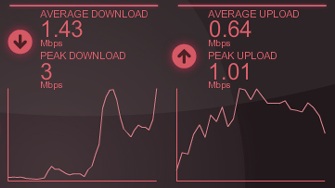
This test in an area with a better signal shows that while the WiBE can run fast, the 3G network itself has a big bearing on the test, and that our tests which usually just report the average speed (which reflects the user experience when streaming or downloading files) can be lower than the peak speed which some speed tests display in some situations.
While the WiBE is best suited to use in a fixed location, we have found that it will work even when a car is moving, of course only passengers would be able to make use of it. With iOS6 relying on Internet access for its navigation maps in the bundled navigation app, having a WiBE in the car may prove useful for those that drive in and out of areas with poor 3G services.
With the provision of two 100 Mbps Ethernet ports, there is of course the option for people to stream content between machines on the local network. To test this we have looked at the wireless speed using our usual set-up, this proved interesting as our Dell Precision M4400 would not connect using 802.11n, forcing the WiBE to only use 802.11g to let us test. So while we have WiFi speed results there is the caveat that these are 802.11g only.
| Location | Nominal Link Speed | Measured Speed |
|---|---|---|
| LAN to LAN | 100 Mbps | 94 Mbps |
| Top Floor – Same Room | 54 Mbps | 22.2 Mbps |
| Middle Floor | 54 Mbps | 21.9 Mbps |
| Ground Floor | 48 Mbps | 19 Mb[s |
| Kitchen | 2 Mbps | 0.5 Mbps |
| Conservatory | Intermittent 1 Mbps | Test did not complete |
| Shed | No signal | No signal |
The router maintains a good signal within the property, but once we move horizontally, which means the signal will be going through both wooden floors and double brick walls the signal quickly degrades in line with most wireless routers.
The WiBE does work with 802.11n on a Mac Book Air, so it seems as is so often the case with wireless kit that while standards exist, interpretations do vary.
Conclusion
It has been sometime since we had a router that did not like to work with our standard Dell test laptop, but dropping to 802.11g standard fixed that. With new versions of the WiBE arriving to support faster 3G standards this will hopefully be improved.
The router itself did prove at times to be slow to respond to access requests for the web interface, particularly when it was searching for a 3G signal. After the lightning performance from other recently reviewed hardware this did make the WiBE feel more like a device from the 2006/2007.
As a device that can get you a 3G service in areas where other devices cannot it is very useful, and this explains why some are so evangelical about the device, particularly as upstream speeds are sometimes better than ADSL or ADSL2+ can offer.
While buying a 3G only device with 4G around the corner may seem a waste of money, remember we do have a couple of years to wait before the target coverage of 98% of the UK is reached, and for those struggling along with ADSL lines at under 1 Mbps the WiBE does offer a potential way to improve connectivity.
While much coverage published about the WiBE is about its performance in rural areas, those in a city who want to avoid 12 or 18 month contracts for fixed line broadband and the common need for a telephone line, may find the WiBE useful too.
Links
Introduction
What you get for your money
Configuring the WiBE
Configuring Wireless Access
Firewall Configuration
Miscellaneous Settings
Performance
Conclusion
Links
Photos
Introduction
The WiBE is an unusual piece of broadband hardware, as it claims to be able to provide a 3G broadband connection in areas where other hardware cannot. In theory, given a good enough 3G signal the device should run at up to 7.2 Mbps.
Click image for larger version
The WiBE works by using a 3G data SIM and testing the four antenna enclosed within its barrel like body, then selecting the antenna that gives the best signal. The use of four differently oriented antenna that are larger than you will find in any 3G enabled phone or MiFi device means the device can find a 3G signal in areas where other devices cannot.
One important point to make is that unlike mobile phones that will drop back to the slow GPRS data standard, the WiBE will only operate where it can detect a 3G signal.
The WiBE incorporates a wireless broadband router so once it has found a 3G signal you can share it between your devices using Wi-Fi or one of the two Ethernet connectors.
What you get for your money
The WiBE is far from cheap, at £250 to £270, but that is for an unlocked device, so if you compare it to the price of other mobile phone hardware when there is no network subsidy it looks less shocking.
Click image for larger version
There are other hardware options, such as a battery pack for the ultimate in remote 3G connectivity, and for the road warrior or caravan enthusiast a 12V adaptor lead. Don’t go and bodge a lead together as the WiBE wants a 6V DC connection, not the standard car battery 12V.
Click image for larger version
The pictures don’t really convey the size of the main unit which is 18.2cm (height) x 13cm (diameter) and weighs 450g. So this is not a device you would slip into a coat pocket.
Click image for larger version
The majority of the case is occupied by the four 3G antenna which are linked to the PCB via a ribbon cable.
Click image for larger version
Connnecting the WiBE
It is not often we get a device that is truly plug and play, but the WiBE seems to be. Using the device is as simply as unpacking it, inserting a SIM card, powering it on and then waiting a couple of minutes for it to finish its checking for a 3G signal.
The sequence the router follows when searching for a 3G signal is to cycle through its four antennas, represented by their own LED on the base panel, the 5 second wait while it checks each cell location can seem an eternity when staring at the LEDs. We would also warn the impatient that the router takes around 2 to 3 minutes to be ready from initial power up.
To connect to the WiBE via Wi-Fi, the WPA encryption information is helpfully supplied on the quick start leaflet and also on a sticker on the bottom of the router.
The WiBE should work with all the 3G networks in the UK, and its firmware knows the settings to use. Just in case you need to manually configure the settings, you can log into the router at http://192.168.1.1 and under Internet Settings | 3G you can configure the APN and other details.
Click image for larger version
If you are unable to get the WiBE to provide any Internet access and you are sure your 3G data SIM works, then a visit to the Administration | Status page is in order.
Click image for larger version
In the screenshot above, the WiBE is clearly still looking for a signal. In which case relocating it to another position in the home may help, generally the higher the WiBE is located the more chance it has of picking up a signal.
Configuring Wireless Access
While the WiBE is supplied with WPA encryption enabled, it is often a good idea with pre-configured hardware to set your own wireless key. The WiBE supports all the usual options as can be seen below:
Click image for larger version
While a Hidden SSID is a popular choice by some when attempting to secure their wireless network, this actually does very little and can confuse some wireless devices when trying to connect, so we would advise leaving the SSID visible. The Isolated checkbox can be useful, as it means that while each client computer can connect to the Internet they are isolated from other clients running on the same LAN.
Network mode can be useful, and while the WiBE supports 802.11n the 3G speed limit of 7.2 Mbps means that in reality running in 802.11b/g mode will be sufficient. Wireless devices are meant to automatically pick the best network speed, but with some wireless network cards forcing a router to use the older b/g standards can actually improve connectivity, as not all devices that say they support 802.11n actually interoperate very well.
Click image for larger version
Changing the Security settings is pretty simple and a variety of WEP, WPA and WPA2 encryption options are available. While you can run the WiBE with wireless security disabled, we would not recommend this particularly given the cost of 3G data.
The Access Policy gives you the option of filtering access to the wireless network via a devices MAC address. In theory the MAC is unique to every network card (both wireless and Ethernet), but they can easily be changed, so while it provides some extra security it will not keep the determined out of the network – hence why using a long and very difficult to guess encryption pass phrase is important.
Firewall Configuration
In the out of the box configuration, the WiBE is already more secure than using a USB 3G dongle, as the routers NAT functionality will drop all unsolicited traffic. The firewall settings allow you more control and can do things like block outgoing traffic on specific ports, or punch holes in the NAT firewall so that a webcam broadcast can be seen.
MAC/IP/Port Filtering
Click image for larger version
The MAC/IP filtering is disabled by default, and operates in two modes:
- Packets not matching any rules will be Dropped: This means for any Internet communication to operate you will have to configure a rule. This effectively creates a very strict lock down on the Internet connection.
- Packets not matching any rules will be Accepted: This is the common mode people use, and could be used to block a range of ports, eg. by blocking the range of ports usually used by a peer to peer client you can probably stop it from working – we say probably as many p2p clients can be reconfigured to get around this sort of blocking.
The rule table allows only 32 rules, so if running in Dropped mode you may find that a complex network is going to run out of rules very quickly. While some may think that dropping all traffic, but only allowing TCP port 80 traffic through will mean just basic web browsing is available, many video streaming protocols support a fail-over to using HTTP and thus would still work and chew bandwidth. In conjunction with the Content Filtering on another page, you might be able to restrict someone’s YouTube addiction that results in a data allowance vanishing the first day of a new billing period.
Port Forwarding / Virtual Server Settings
The router in the WiBE supports two types of server hosting, you can use port forwarding where the port on the local network is the same as the port people will access the service/device on via the Internet. For example if you wanted to host a FTP server on TCP port 21 and it to be accessed from the Internet using the standard FTP commands then use port forwarding to direct port 21 to the appropriate LAN IP address.
Click image for larger version
The Virtual Server settings allow you to do port redirection, e.g. if you have an IP based webcam that runs on TCP port 8000, you can actually accept the Internet requests on TCP port 80 and use a virtual server rule to redirect the requests to port 8000 on the local LAN.
If port forwarding does not work, then there is the fall back option of defining a machine on the local LAN as the DMZ host. This effectively makes the device using that IP address totally visible from the Internet, and thus should only be used as a last resort. Before getting too excited over your ability to host a webcam, you should check whether your mobile provider is handing you a public IP address or if they are already applying NAT to the connection.
Content Filter Settings
For those who want to lock down Internet access this area may be worth a look, but as is common with many routers, it is not ideal and is no replacement for software running on the local computer. Of course with a 3G data SIM by default sites that are considered Adult in nature are blocked, so content filtering is less of an issue on the WiBE, as you have a network level option too.
Two levels of filtering are possible, keyword matches in any part of the URL or just the host name component.
Miscellaneous Settings
The WiBE does support the usual set of router options, so you can change the IP range of the router if you wish, or adjust the DHCP IP address pool range from the default 192.168.1.100 to 192.168.1.200 if you wish.
Usefully the router does support reservation of a LAN IP address via a MAC address for up to three devices. If UPnP is important, then this can be enabled.
If you are using a VPN to tunnel your traffic across the mobile networks and you find the WiBE is causing problems, before resorting to playing with port forwarding we would suggest trying the VPN Passthrough options, which provide three ALG options for L2TP, IPSec and PPTP.
Performance
On initial unpacking the WiBE was actually a bit of a disappointment, as no matter where we located it at home, it was unable to find any 3G signal. Given our location on the mobile operator’s maps shows us being on the edge of 2G/No Signal at all then this is no surprise, but does highlight that the WiBE is not a solution to everyone’s broadband problem. Some retailers selling the WiBE will let you try the device for a week, just make sure you keep all the packing until you are happy with it.
Relocating 500m down the road, and running the WiBE from a mains inverter inside the car boot we were able to get the router to connect and successfully pick up a 3G signal where a Samsung Galaxy S2, iPhone 5 or Vodafone mobile dongle could not. If you are going to run the WiBE using your car battery make sure you remember to turn it off otherwise your battery will eventually run down, or check whether your car switches off 12V accessory outlets after a period of time once the ignition key has been removed. The unit is rated at using less than 5W and we measured 0.25A on the current consumption.
Moving to an area where our phones could just about pick up a 3G signal was interesting, as the WiBE still performed better and you did not have the problem of having to stand in a certain spot to use the signal. Even with the boot of the car closed, we were able to use the WiFi some 30 metre away across the car park.
This test in an area with a better signal shows that while the WiBE can run fast, the 3G network itself has a big bearing on the test, and that our tests which usually just report the average speed (which reflects the user experience when streaming or downloading files) can be lower than the peak speed which some speed tests display in some situations.
While the WiBE is best suited to use in a fixed location, we have found that it will work even when a car is moving, of course only passengers would be able to make use of it. With iOS6 relying on Internet access for its navigation maps in the bundled navigation app, having a WiBE in the car may prove useful for those that drive in and out of areas with poor 3G services.
With the provision of two 100 Mbps Ethernet ports, there is of course the option for people to stream content between machines on the local network. To test this we have looked at the wireless speed using our usual set-up, this proved interesting as our Dell Precision M4400 would not connect using 802.11n, forcing the WiBE to only use 802.11g to let us test. So while we have WiFi speed results there is the caveat that these are 802.11g only.
| Location | Nominal Link Speed | Measured Speed |
|---|---|---|
| LAN to LAN | 100 Mbps | 94 Mbps |
| Top Floor – Same Room | 54 Mbps | 22.2 Mbps |
| Middle Floor | 54 Mbps | 21.9 Mbps |
| Ground Floor | 48 Mbps | 19 Mb[s |
| Kitchen | 2 Mbps | 0.5 Mbps |
| Conservatory | Intermittent 1 Mbps | Test did not complete |
| Shed | No signal | No signal |
The router maintains a good signal within the property, but once we move horizontally, which means the signal will be going through both wooden floors and double brick walls the signal quickly degrades in line with most wireless routers.
The WiBE does work with 802.11n on a Mac Book Air, so it seems as is so often the case with wireless kit that while standards exist, interpretations do vary.
Conclusion
It has been sometime since we had a router that did not like to work with our standard Dell test laptop, but dropping to 802.11g standard fixed that. With new versions of the WiBE arriving to support faster 3G standards this will hopefully be improved.
The router itself did prove at times to be slow to respond to access requests for the web interface, particularly when it was searching for a 3G signal. After the lightning performance from other recently reviewed hardware this did make the WiBE feel more like a device from the 2006/2007.
As a device that can get you a 3G service in areas where other devices cannot it is very useful, and this explains why some are so evangelical about the device, particularly as upstream speeds are sometimes better than ADSL or ADSL2+ can offer.
While buying a 3G only device with 4G around the corner may seem a waste of money, remember we do have a couple of years to wait before the target coverage of 98% of the UK is reached, and for those struggling along with ADSL lines at under 1 Mbps the WiBE does offer a potential way to improve connectivity.
While much coverage published about the WiBE is about its performance in rural areas, those in a city who want to avoid 12 or 18 month contracts for fixed line broadband and the common need for a telephone line, may find the WiBE useful too.
Links
Photos
Please click on an image to see it in full resolution.


 Test your broadband speed
 Follow us on X for the latest broadband news