Broadband Quality Monitor (BQM)
We have set up a second BQM Monitoring Node in Edinburgh. Please refer to the table below for more details.
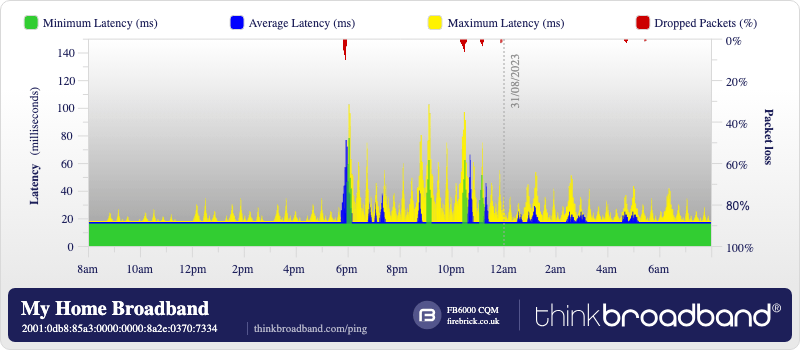
Our Broadband Quality Monitor (BQM) tool is designed to monitor the state of your broadband connection once a second, every second. We send a ‘ping’ packet to your router and it responds to us with a ‘pong’. We then measure how many packets we’ve sent and received (to calculate ‘packet-loss’ which is shown as red from the top of the graph), and how long it takes for each one to come back to track the round-trip time (RTT), or ‘latency’ (shown in green, blue and yellow representing the minimum, average (mean) and maximum latency in each 100-second period.)
This can help in identifying congested circuits, router re-syncs, routing changes, signal quality issues, or other types of connectivity problems. So useful if you are using your connection for real-time applications such as online gaming, which can be very sensitive to latency or variation thereof (jitter).
How to configure your router — Ask ChatGPT AI
Complete BQM Guide — How to interpret graphs & troubleshooting
How does our Broadband Quality Monitoring work?
How BQM Measures Latency
Our Broadband Quality Monitor sends one ICMP ping request every second. Replies reveal round-trip latency; unanswered pings are recorded as packet loss.
This is a simulated animation to explain how our Broadband Quality Monitor works and not a live result.

Hardware
We have partnered with Firebrick who manufacture the FB6000 device which is designed for high-scale testing of latency and packet loss as well as function as a broadband aggregation router (an LNS) for operators. We have been running this service (always free) for over a decade with tens of thousands of lines being monitored each and every second. For broadband aggregation, the replacement device is the Firebrick FB9000 which is required for modern routing with its 10Gbps ports, however for our monitoring the traffic itself is quite minimal.
Our Monitoring Nodes (and how to configure your firewall)
We have been operating a monitoring node (a ‘ping box’) from the same network that thinkbroadband runs on, NetConnex (ncuk.com; AS21396), based in Telehouse in London close to the major Internet Exchanges LINX and LONAP since we started the service.
Since October 2026, we have added support for multiple nodes and our first external node with Commsworld (AS56595) in South Gyle, Edinburgh. You can now monitor your broadband connection from different locations just by ticking another box. We have chosen these locations because they provide good interconnection options to public Internet exchanges.
More nodes will be arriving soon.
Monitoring Node Locations
| Node Name | IP Address | Network | Datacentre |
|---|---|---|---|
| LON1 | 80.249.99.164 2a02:68:1::164 |  AS21396 | Telehouse, London |
| EDI1 | 45.149.252.107 2a00:a600:0:1c::2 |  (AS56595) | Pulsant South Gyle, Edinburgh |
| ( coming soon ) |
Configuring your router / firewall
You may need to ensure that your broadband router responds to ICMP echo requests (commonly known as ‘WAN Ping’). You can limit responses to only requests made from our monitoring nodes, rather than the entire Internet. You should not disable firewalls outright.
Supported Routers — Some broadband providers may issue routers which do not give you this option, or may make it difficult for you to find it. If appropriate, speak to your broadband provider about how to enable this setting.
CGNAT — Also, be mindful that you cannot use this service if you are on a Carrier-Grade NAT (CGNAT) the service, as the public IP address (at least as far as IPv4 is concerned), is not your broadband router but a device hosted by your broadband provider. You may be able to move to a standard non-CGnat service, but this may cost more in some cases.
Hostnames & Dynamic IPs — We have for some time supported the monitoring of host names, which means that if you do not have a static IP address. You can still use the service with a Dynamic DNS provider. If your IP changes, it may take a little bit of time before this is detected, and this may cause artefacts on the graphs, but this in itself is useful to know.
Frequently Asked Questions
Why does my graph show 100% packet loss?
This may be due to firewall settings or because your IP address has changed. If you have a firewall, ensure that it allows ICMP ping. You will also see 100% packet loss if the address we are monitoring is disconnected from the Internet. You can find out how to configure your router or firewall using our
router setup guides.
My IP address starts 10.x.x.x, 192.168.x.x can I monitor it?
These are local IP addresses that are used locally on your network. We would only be able to monitor as far as your broadband router. To find out what the IP address of this is, please use our
What is my IP page (but be aware that this could be a CGNAT IP address which isn’t on your router).
Will you still monitor if I turn my computer off?
We can only monitor devices that are connected to the Internet and powered on. If you use a broadband router which is separate from your computer, and remains turned on when you turn your computer off, we should be able to monitor this. However if you turn off your router, or you turn off your computer which uses a broadband modem rather than router, we would not be able to monitor it, and it should show up as 100% packet loss.
You are setting up monitoring for an IPv6 address (which is a string of numbers and letters separated by colons) please make sure that you are monitoring your router’s IP address and not the IP address of your computer or tablet.
Will this use up my usage allowance?
We only send very small ping packets every second. These are 28 bytes in size, so the total usage from our system would be 2.42MB (megabytes) per day, or on average around 73.63MB (megabytes) per month. Most broadband packages with usage allowances would measure them in Gigabytes (1000MB), so this would represent an insignificant amount in your usage allowance. If in doubt, please contact your service provider.
 Test your broadband speed
 Follow us on X for the latest broadband news